Add local information to your real estate website with StrollPlace widgets
Choose a place card or add area information to listings automatically. See what visitors get, which listing providers are supported, and how to install either widget—without writing local content.
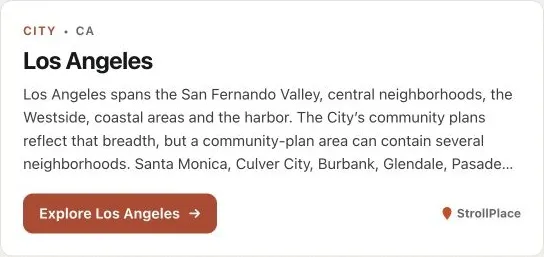
Give buyers a view of the area alongside the property. StrollPlace widgets bring ready-made local descriptions, area statistics, school entries and places to explore onto your real estate website. You choose which sections to show; the content comes from StrollPlace. You do not need to write neighborhood articles or maintain a separate local guide.
There are two widgets: Place card, for a location you select, and Listing pages, which adds area information automatically to supported property listings. Both are free to use, require no StrollPlace account and use no cookies or tracking in the embed.
What appears on your website
The widget displays the sections you select, where information is available:
Place overview: a short introduction to the city, neighborhood or landmark, with a link to explore it on StrollPlace.
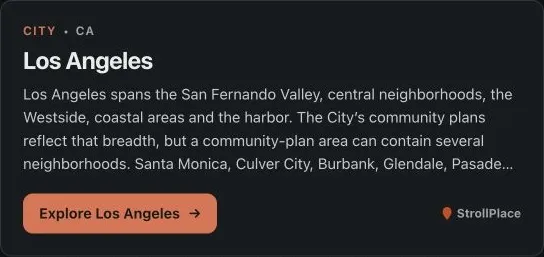
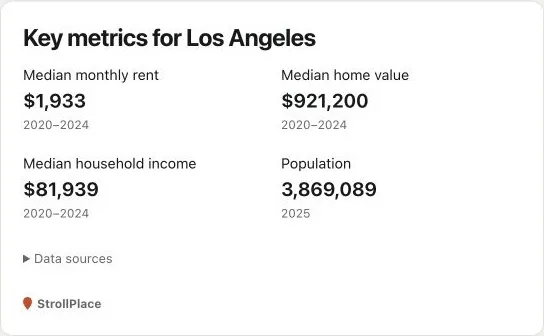
Key metrics: area population, median home value, median monthly rent and median household income, with sources and observation periods.
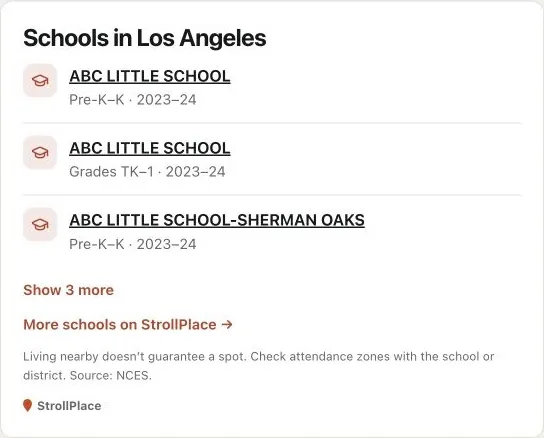
Schools: school names, grade ranges and school years, with links to more information. Nearby schools do not guarantee attendance eligibility.
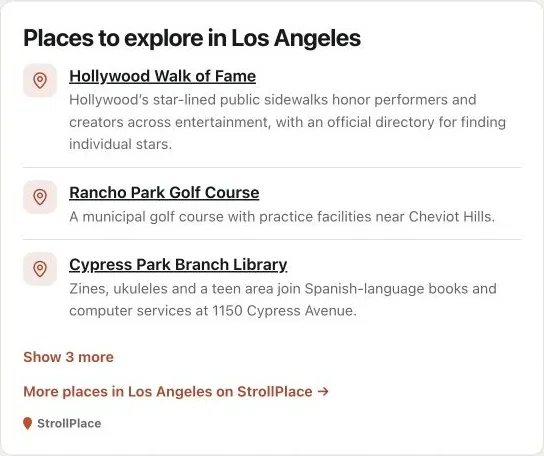
Places to explore: local places with short descriptions and links to their StrollPlace pages.
You can use the overview alone or combine sections. Available content depends on the location; sections without data are omitted. Area statistics describe the named area, not a valuation of the property. Landmark cards do not include area metrics or school listings.
Visitors read the displayed information on your website. Explore links, school links and place links open StrollPlace in a new tab for further research. The widget includes StrollPlace branding. It does not create neighborhood-guide pages on your domain.
1. Place card: choose the location yourself
Use Place card when you want to feature a particular city, neighborhood or landmark. For example, add a Los Angeles card to a page about the market you serve, or place a neighborhood card beside a property description.
Choose the place in the builder, select the content sections and match the appearance to your site. Paste the generated embed where the card should appear. It keeps showing that selected place wherever you install it; it does not detect a property’s address.
This option does not depend on an IDX provider. Your website needs to allow the supplied HTML and script. If you add several place cards to one page, include the script only once.
2. Listing pages: add area information automatically
Use Listing pages when your website already displays property listings through a supported provider. Install the generated script once in the location specified by the builder. It reads the listing’s available location information and requests matching area content from StrollPlace, so you do not need to choose a place for every property.
Depending on the provider, it can appear on individual listing pages, in listing lightboxes, and below search results. On search pages, it groups area information for the displayed listings; visitors can open the area sections to explore them. The builder lets you choose the supported placements and whether search-page sections open automatically.
The place selected in the builder is only a preview for this widget. It is not the location installed across all your listings. On your site, the result depends on the actual listing location and available StrollPlace coverage, and may show city information rather than a neighborhood.
Choose your provider for its setup instructions, or use Detect automatically for supported providers. Listings inside iframes cannot be detected from the surrounding page. If the widget cannot identify a supported listing or find matching content, it stays hidden. If a page remains empty, check the selected provider, its installation instructions and the listing’s location information.
Supported listing providers
The Listing pages widget supports the following providers and placements. A listing lightbox is the property popup that opens over a results page. Custom templates may need an installation check.
Provider | Where it can appear |
|---|---|
AgentFire | Listing pages and search results |
Buying Buddy | Listing pages and search results |
Diverse Solutions IDX (dsIDXpress) | Listing pages and search results |
Easy Agent Pro | Listing pages, listing lightboxes and search results |
Flexmls IDX | Listing pages and search results |
IDX Broker | Listing pages and search results |
iHomefinder | Listing pages, listing lightboxes and search results |
Lofty IDX | Listing pages and search results |
Real Geeks | Listing pages and search results |
RealScout | Search results |
Realtyna WPL | Listing pages and search results |
Rover IDX | Listing pages and search results |
Showcase IDX | Listing pages and search results |
SimplyRETS | Listing pages and search results |
Other provider is a separate option for individual listing pages that expose supported Schema.org listing data. Your website provider must choose the container where the widget appears. It is not automatic support for every IDX system. If your listing integration is not supported, you can still use a Place card for a location you select.
See the content and styling
These screenshots show the live Los Angeles place preview. Both widgets use the same content sections and appearance controls. The Place card shows your chosen location; the Listing pages widget selects content from each listing’s location.
Light overview
Dark overview
Key metrics
Schools
Places to explore
Add the widget to your site
Choose Place card for a fixed location, or Listing pages for automatic listing integration.
For a Place card, select the city, neighborhood or landmark. For Listing pages, choose your provider and the placements you want.
Select the content sections. Match your theme, colors, font, corner radius and standard or compact layout, then preview the result on desktop and mobile.
Copy the generated code and follow the builder’s installation instructions. If someone manages your website, use Copy instructions for your AI agent or send them the generated setup instructions.
Open an installed page on your website and confirm that the location, content and layout are right. For Listing pages, check more than one property and each placement you enabled.
Your work is choosing and installing the widget. The local descriptions and data are supplied by StrollPlace when it loads; there is no neighborhood article for you to write or copy onto each listing.
Local information, ready to use
StrollPlace brings local descriptions, area statistics, schools and places to explore to your existing pages, without extra writing from you. Visitors can learn about the area while viewing a property and follow links to StrollPlace for more detail.
Ready to choose? Open the StrollPlace widget builder, try both widget modes and preview the content your visitors will see.